If you're having trouble connecting your Airmonitor Plus to Wi-Fi, don't worry, most connection issues can be resolved in just a few minutes.
Top Tip - Most Wi-Fi connection issues are resolved by ensuring the Wi-Fi icon is flashing (pairing mode) and trying the connection process up to three times.
Work through the checks below in order. Most customers are connected successfully after one or two of these steps.
Before You Begin
Before troubleshooting, make sure:
- Your phone is connected to a 2.4 GHz Wi-Fi network.
- Bluetooth is enabled on your phone.
- You're standing close to both your Airmonitor Plus and your Wi-Fi router.
- The Breathe Tech app is updated to the latest version.
1. Check That the Monitor Is in Pairing Mode
The most common cause of connection problems is that the monitor isn't in pairing mode.
The Wi-Fi icon must be flashing before the app can discover the device.
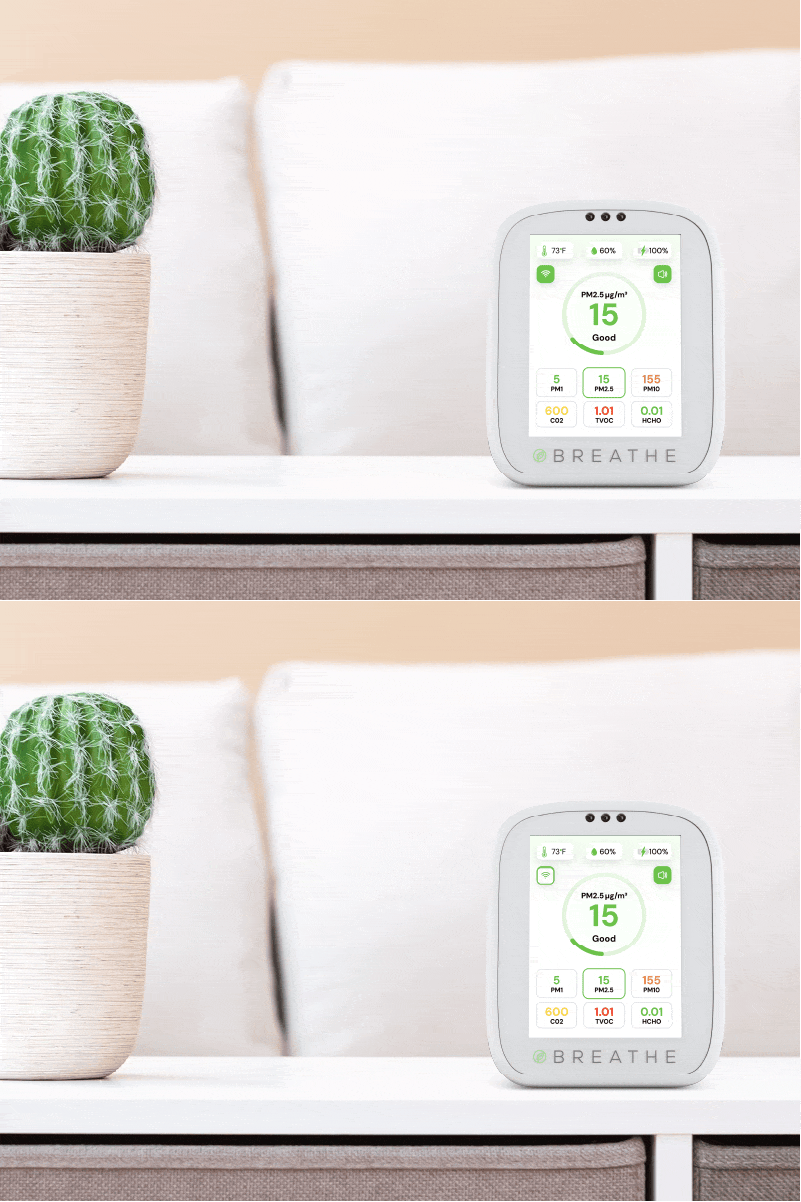
If it isn't:
- Power off the Airmonitor Plus.
- Press and hold the rear multifunction button for approximately 10 seconds.
- Continue holding until you hear a beep and the Wi-Fi icon starts flashing.
- Release the button and try pairing again.
2. Confirm You're Using a 2.4 GHz Network
Airmonitor Plus only supports 2.4 GHz Wi-Fi.
It cannot connect to:
- 5 GHz networks
- Enterprise (WPA2-Enterprise) networks
- Hotel or guest networks that require a web page login (captive portals)
If your router combines 2.4 GHz and 5 GHz under one network name, try moving a little further from the router during setup or temporarily enabling a dedicated 2.4 GHz network if available.
3. Check Your Wi-Fi Password
A small typing error is one of the most common causes of failed connections.
Double-check that:
- Your Wi-Fi password is correct.
- Upper and lower case letters match exactly.
- There are no extra spaces before or after the password.
4. Try Again
Some Wi-Fi routers, particularly mesh or dual-band systems may not connect on the first attempt.
If pairing doesn't complete, simply repeat the setup process.
We recommend trying up to three times before moving on to the next step.
5. Restart Your Devices
If you're still unable to connect:
- Restart your Airmonitor Plus.
- Restart your smartphone.
- Restart your Wi-Fi router.
Once everything has restarted, try the pairing process again.
6. Reset the Wi-Fi Settings
If the monitor has previously been connected to another Wi-Fi network or Breathe Tech account, you'll need to clear the saved connection before pairing again.
Follow our Resetting Wi-Fi Settings guide, then repeat the connection process.
Still Can't Connect?
If you've completed all of the steps above and your Airmonitor Plus still won't connect, we're here to help.
Please contact Breathe Tech Support and include:
- Your order number.
- Your shipping address.
- A brief description of the issue.
We'll help you complete the setup or, if necessary, arrange a replacement.
Frequently Asked Questions
Why can't the app find my Airmonitor Plus?
In almost every case, the monitor isn't in pairing mode. Check that the Wi-Fi icon is flashing before trying again.
Does the Airmonitor Plus support 5 GHz Wi-Fi?
No. The Airmonitor Plus connects to 2.4 GHz Wi-Fi networks only.
My Wi-Fi icon keeps flashing.
A flashing Wi-Fi icon means the monitor is still waiting to connect. Once pairing is successful, the icon will remain solid.
I've tried everything and it still won't connect.
Please contact Breathe Tech Support. We'll work through the issue with you and, if we can't resolve it, we'll arrange a replacement if appropriate.
Was this article helpful?
That’s Great!
Thank you for your feedback
Sorry! We couldn't be helpful
Thank you for your feedback
Feedback sent
We appreciate your effort and will try to fix the article