Connecting your Airmonitor Plus to Wi-Fi unlocks all of the app's features, including remote monitoring, cloud data storage, alerts and historical graphs.
Before You Begin
Please make sure:
- Your Airmonitor Plus is powered on.
- The Breathe Tech app is installed and you're signed in.
- Your phone is connected to a 2.4 GHz Wi-Fi network.
- Bluetooth is enabled on your phone.
- You have your Wi-Fi password ready.
Important: The Airmonitor Plus supports 2.4 GHz Wi-Fi only. It cannot connect to 5 GHz networks.
Step 1 – Put Your Airmonitor Plus into Pairing Mode
Your Airmonitor Plus must be in pairing mode before it can connect to the app.
First-time setup
When you power on your Airmonitor Plus for the first time, the Wi-Fi icon should flash. This means the monitor is already in pairing mode and is ready to connect.
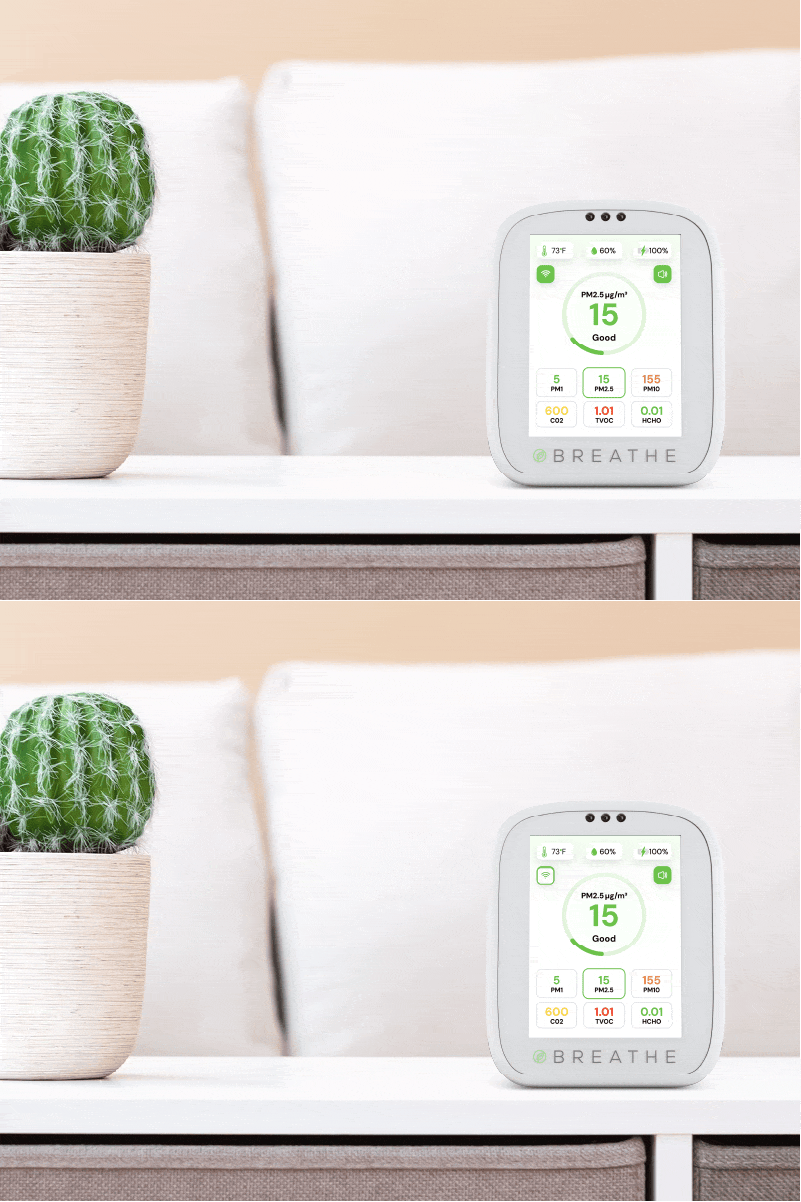
If the Wi-Fi icon is not flashing
- Turn the Airmonitor Plus off.
- Press and hold the rear multifunction button for approximately 10 seconds.
- Continue holding until:
- The display turns on.
- You hear a beep.
- The Wi-Fi icon begins flashing.
4. Release the button.
Your Airmonitor Plus is now ready to pair with the app.
Step 2 – Add the Device
- Open the Breathe Tech app.
- Tap + Add Device.
- Tap the Airmonitor Plus icon.
- Follow the on-screen instructions.
- Enter your Wi-Fi password when prompted.
- Wait while the monitor connects to your network.
Once connected successfully, the Wi-Fi icon will stop flashing and remain solid.
Tips for a Successful Connection
- Keep your phone or tablet close to the Airmonitor Plus.
- Double-check that you're connected to a 2.4 GHz network.
- Enter your Wi-Fi password carefully, as it is case-sensitive.
Troubleshooting
The app can't find my Airmonitor Plus
The most common cause is that the monitor is not in pairing mode.
Check that the Wi-Fi icon is flashing. If it isn't, repeat Step 1 above.
Also ensure:
- Bluetooth is enabled.
- Your phone is connected to a 2.4 GHz Wi-Fi network.
- You're using the latest version of the Breathe Tech app.
Frequently Asked Questions
Can I use the Airmonitor Plus without Wi-Fi?
Yes. The monitor will continue displaying live air quality readings on the screen. However, cloud storage, remote monitoring, alerts and data export require a Wi-Fi connection.
Can I connect to a different Wi-Fi network later?
Yes. Simply place the Airmonitor Plus back into pairing mode and repeat the connection process.
How do I know if I'm connected?
When the connection is successful, the Wi-Fi icon stops flashing and remains solid, and your Airmonitor Plus will appear in the Breathe Tech app.
Was this article helpful?
That’s Great!
Thank you for your feedback
Sorry! We couldn't be helpful
Thank you for your feedback
Feedback sent
We appreciate your effort and will try to fix the article